Upload videos from an Insta360 camera to PaneoVR using a PC/laptop
Using Insta360 Studio is recommended when maximum image quality matters or when you have recorded a large number of videos. You can download and install this software (free of charge).
Preparation: Importing videos
Connect your Insta360camera to your computer or insert your camera's Micro-SD card into a card reader.
Transfer the video files to your computer before using them to ensure high video quality and fast file processing.
Open Insta360 Studio on your computer.
Go to „File“ and select „Open“ or drag your 360° video files directly into the application window. The files usually have the extension .insv.
Wait for the videos to finish importing.
(Optional) Trim the video using the bar shown at the bottom.
Export and upload the video
Click the Exportbutton in the upper-right corner of the Insta360 Studio software.
A new window opens where you can adjust the export settings .
Select the export option. Make sure to select Export as: 360° video .
Specify the file name and save location.
Click „Start export“ to start the export process. Depending on the length and quality of your video, this process may take some time.
In the Task Center in the upper-right corner, you will find the export queue, where you can track the progress of the video export.
Sign in to PaneoVR in your browser and open the web editor.
Under Panoramas , upload the exported video by clicking the plus sign. It is now ready to use immediately.
Upload videos from an Insta360 camera to PaneoVR using a smartphone
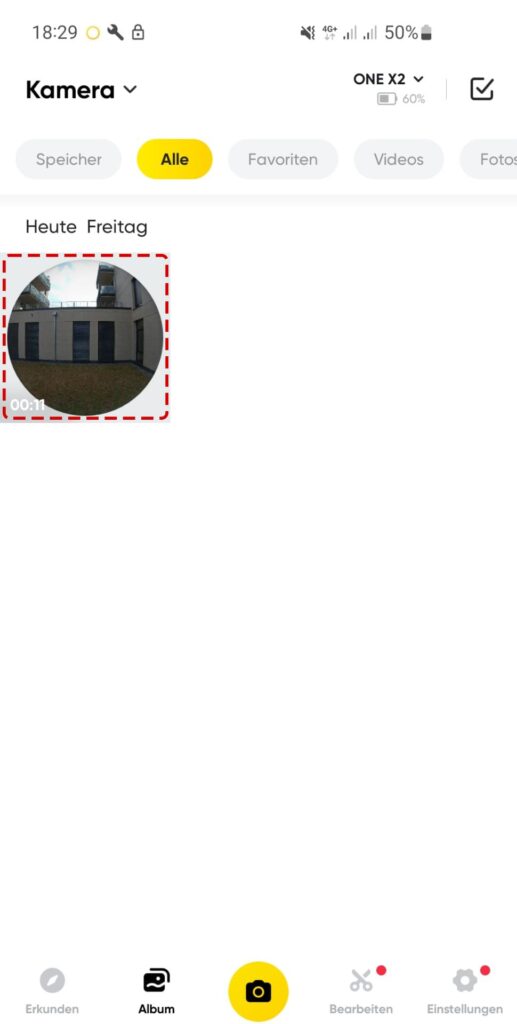
These instructions for exporting recorded 360° videos work with all Insta360 One X and One R models. Note that the PC or laptop export described above is recommended, especially for high-resolution 8K videos. Use the Insta360 App to connect your mobile device to the 360° camera containing your videos. Then follow the instructions below.
1. Select the video in the Insta360 App
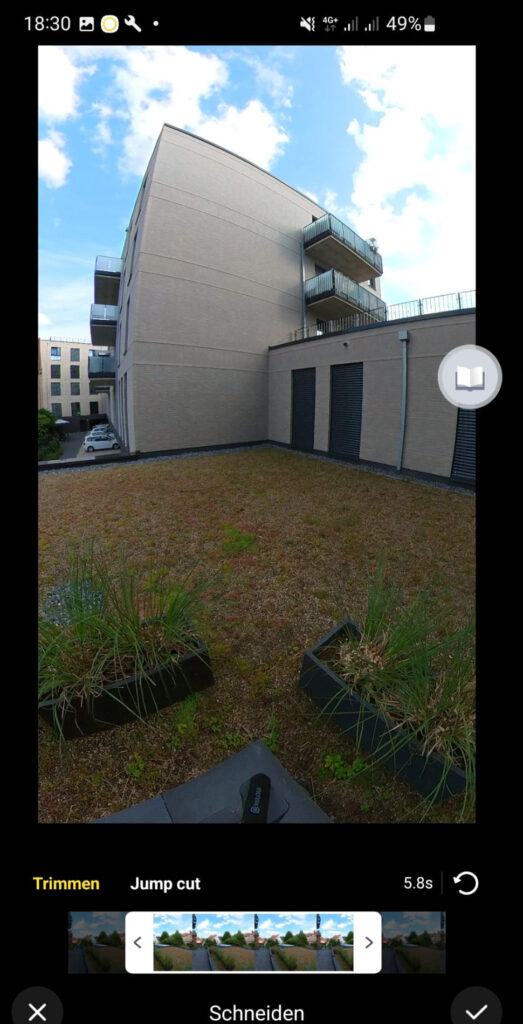
2. Trim (optional)
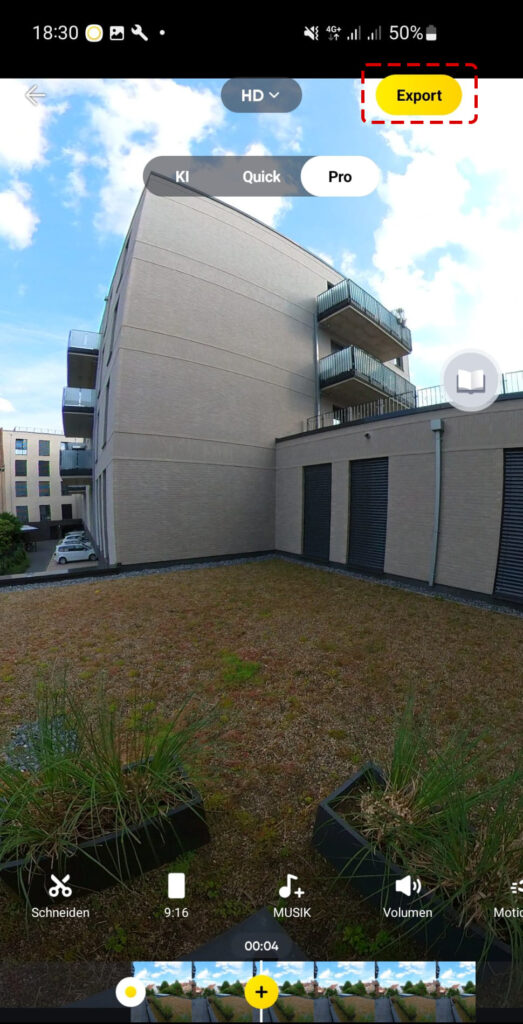
3. Tap Export
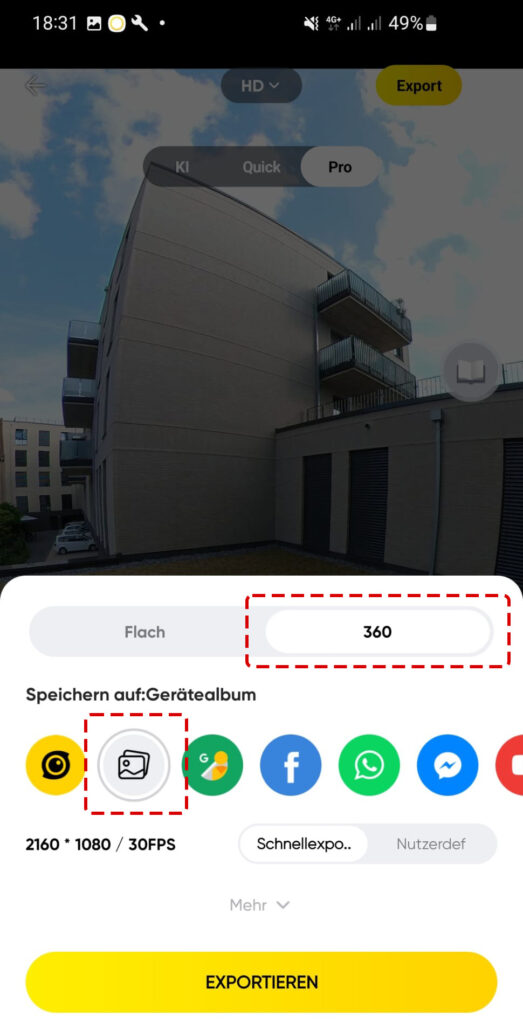
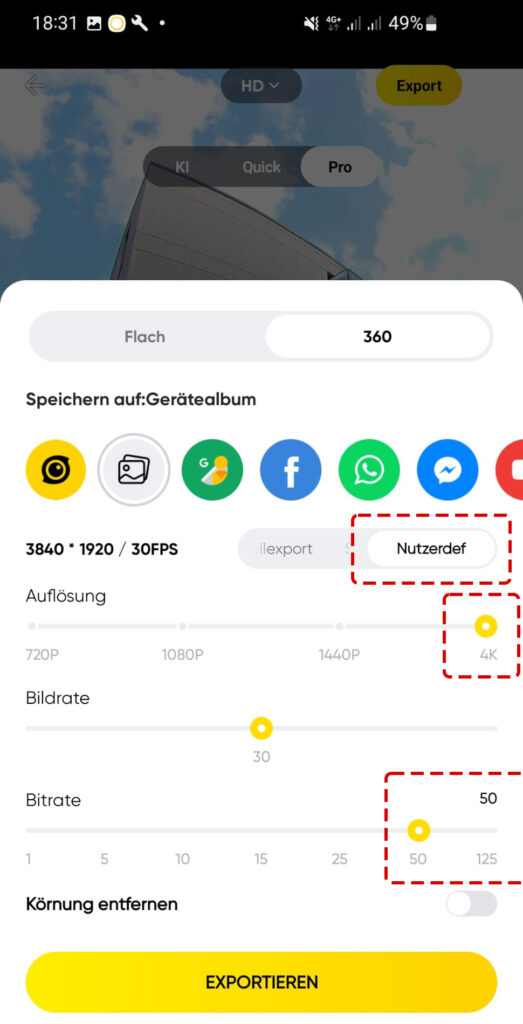
4. Select 360 and save to the device
5. Custom settings
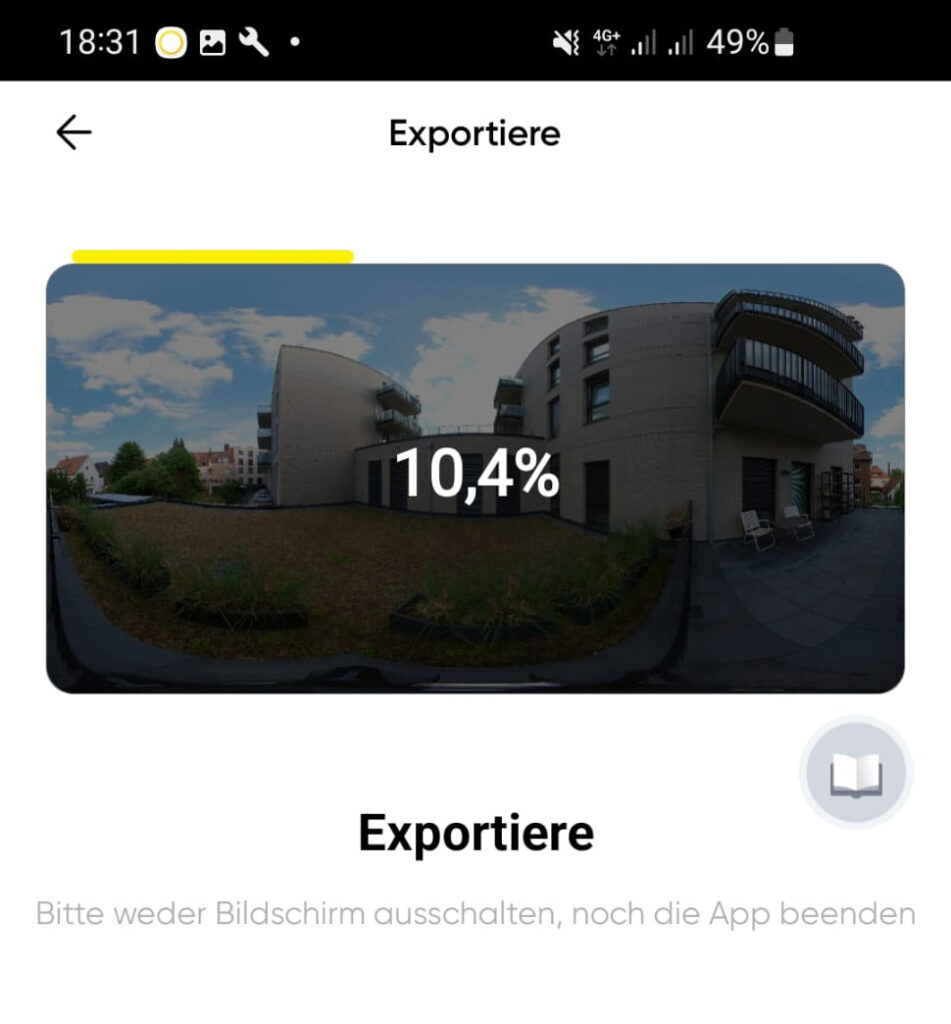
6. Export
Export speed varies considerably depending on the performance of the smartphone/tablet
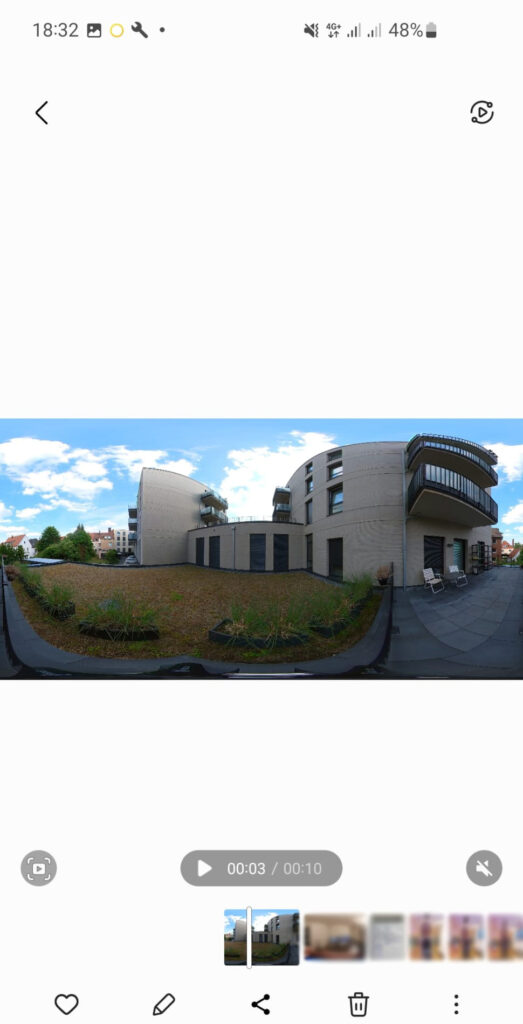
7. The video is saved on the device
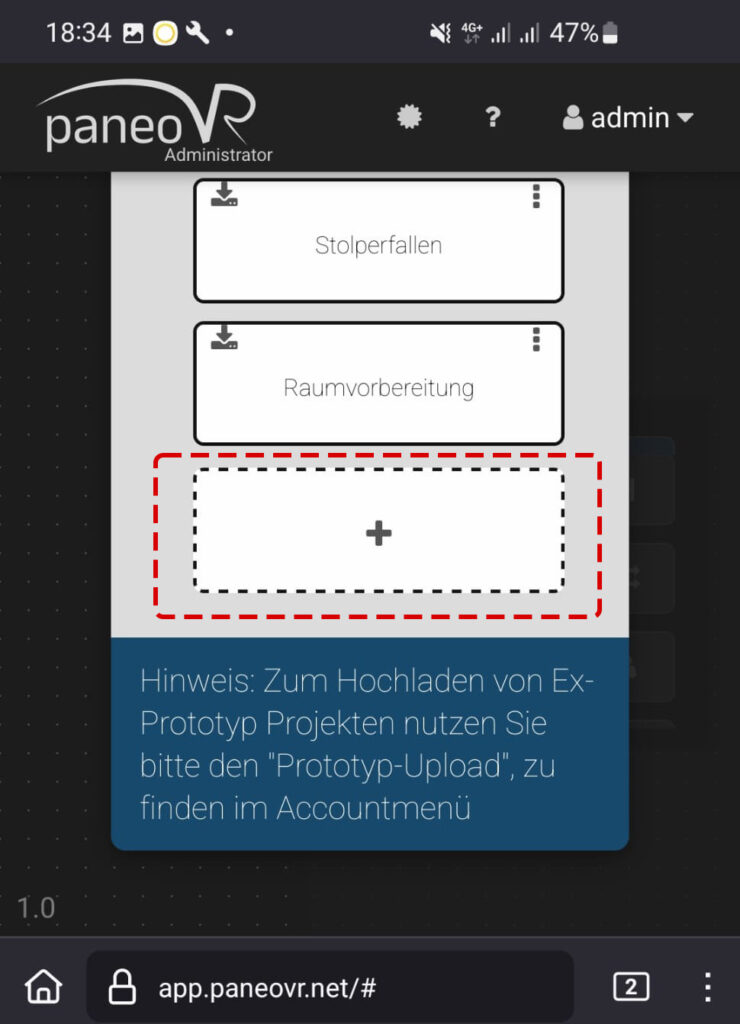
8. Sign in to PaneoVR and upload the video under Videos
Uploading requires a stable internet connection. The video can be uploaded to PaneoVR directly from the smartphone/tablet or transferred to another computer first.